
THE PLATFORM
Report equipment problems.
Keep follow-up in view.
Members and residents scan a QR label to report an equipment issue without an app or login. Authorized staff review reports, update their status, and keep follow-up connected to the equipment involved.
Report an issue right where it happens.
Scan the label
The equipment’s QR label opens its reporting page. No member or resident app or login is required.
Report the issue
A member or resident describes the problem, with the report connected to the equipment involved.
Track follow-through
Authorized staff review the report, update its status, and record follow-up details.
STAFF ISSUE TRACKING
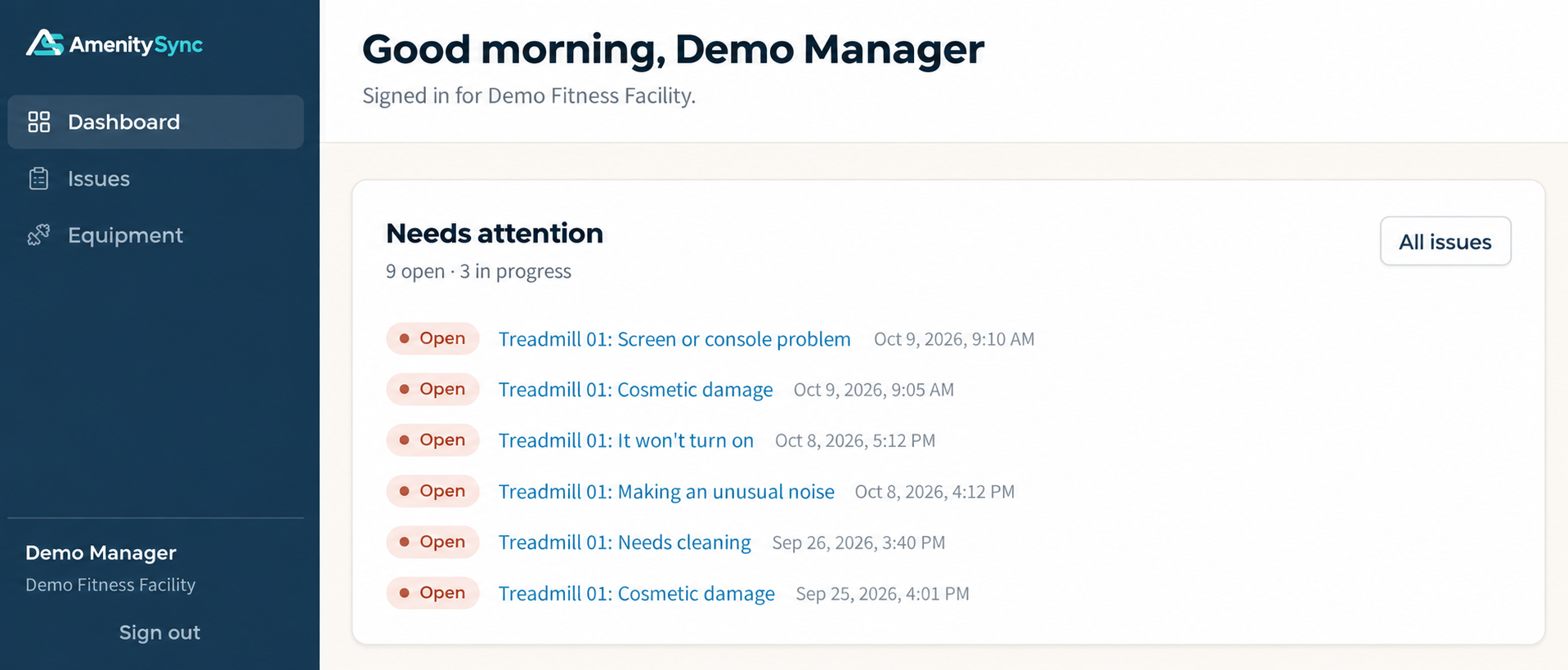
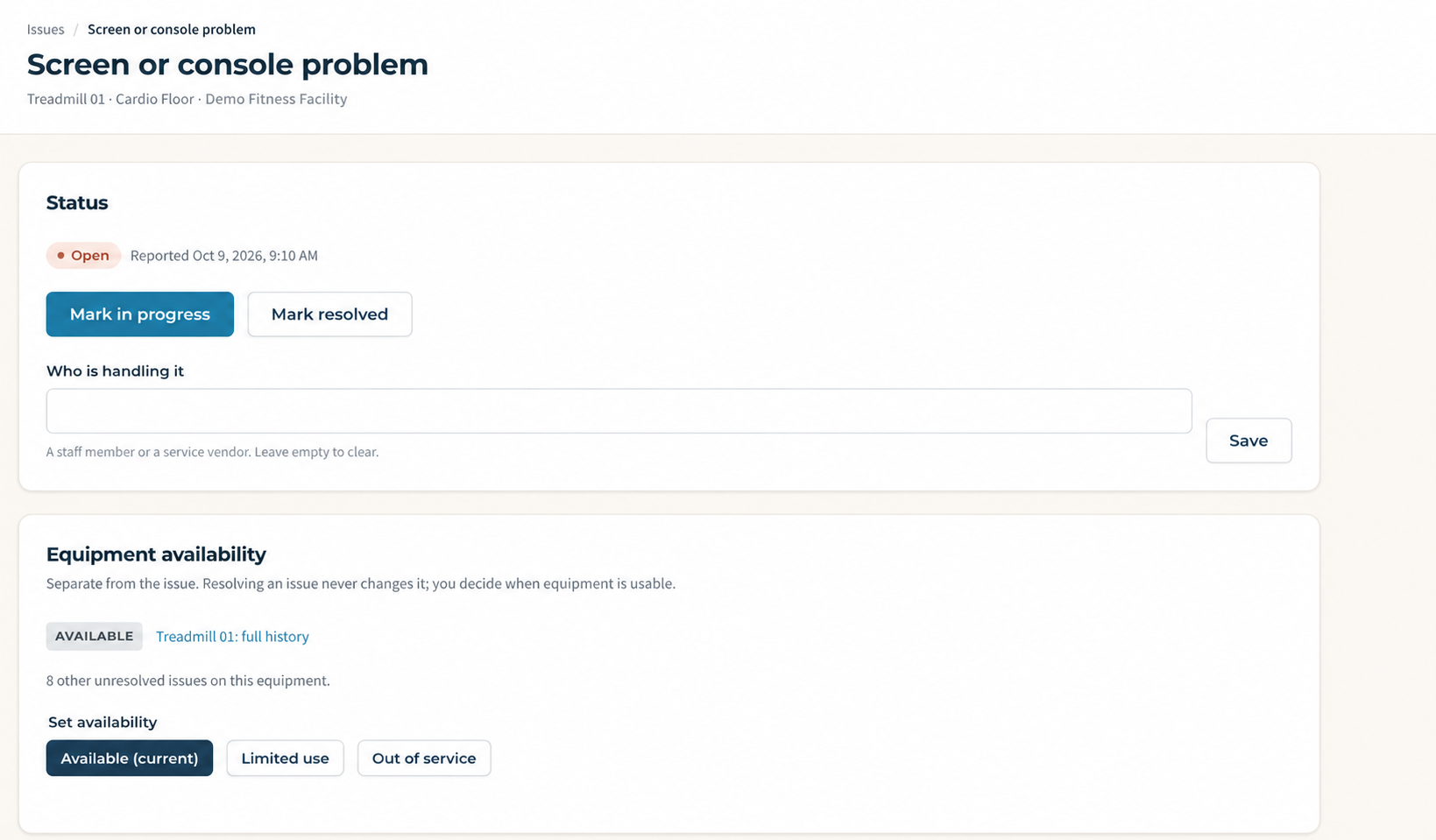
See where reported issues stand.
Give your staff a shared view of equipment reports and their current status.
- Filter reports by status and equipment.
- Review Open, In Progress, and Resolved issues.
- See the equipment, area, and reporting date.
- Open a report to review its details.
EQUIPMENT RECORDS
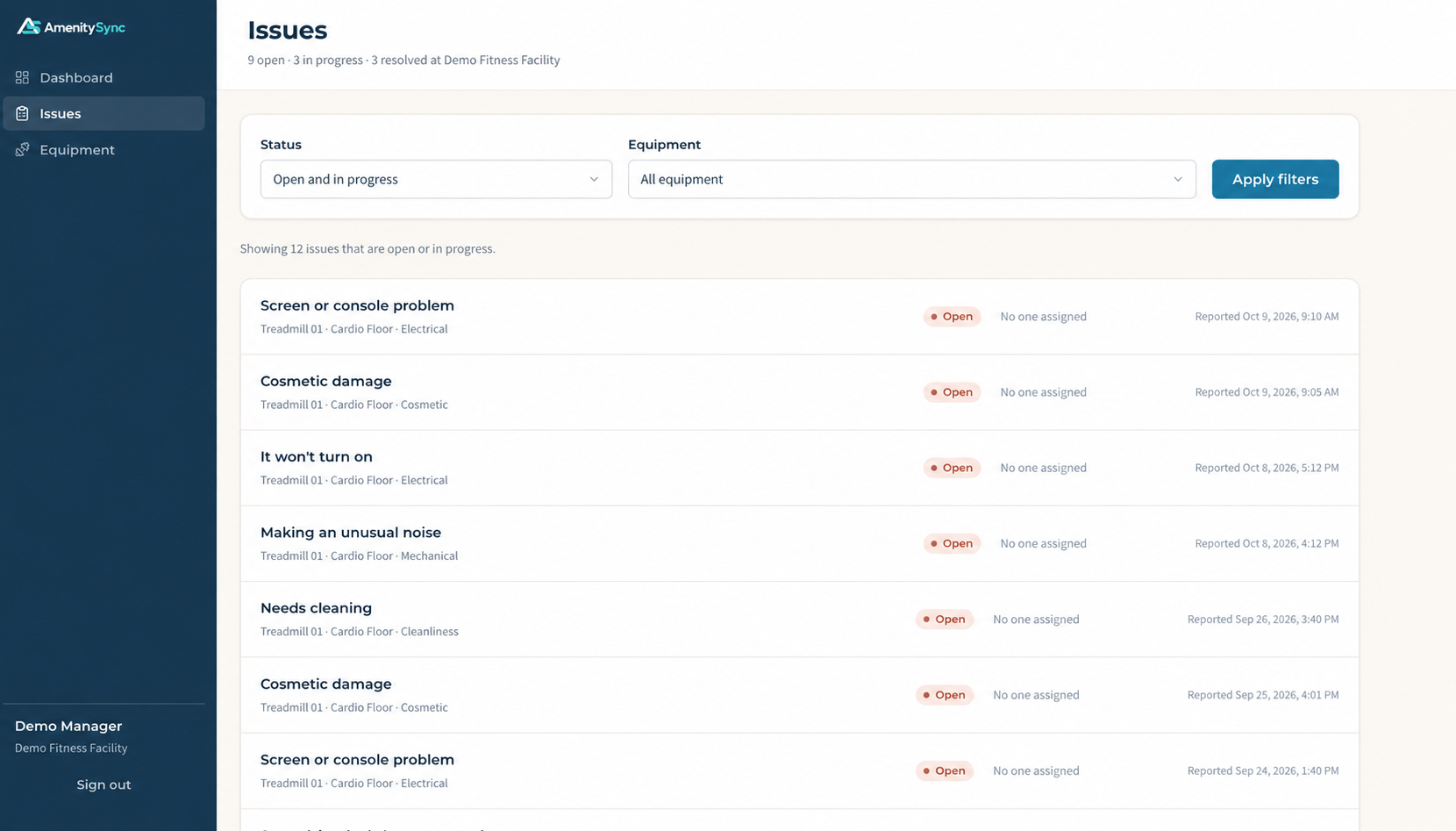
Keep each report connected to the equipment.
Organize equipment by facility area so staff can identify the item involved and review its records.
- Equipment names and facility areas.
- Equipment type and make/model details, where recorded.
- Equipment availability shown alongside the inventory.
- Issue history connected to the equipment record.
REPORT DETAILS
Keep follow-up clear.
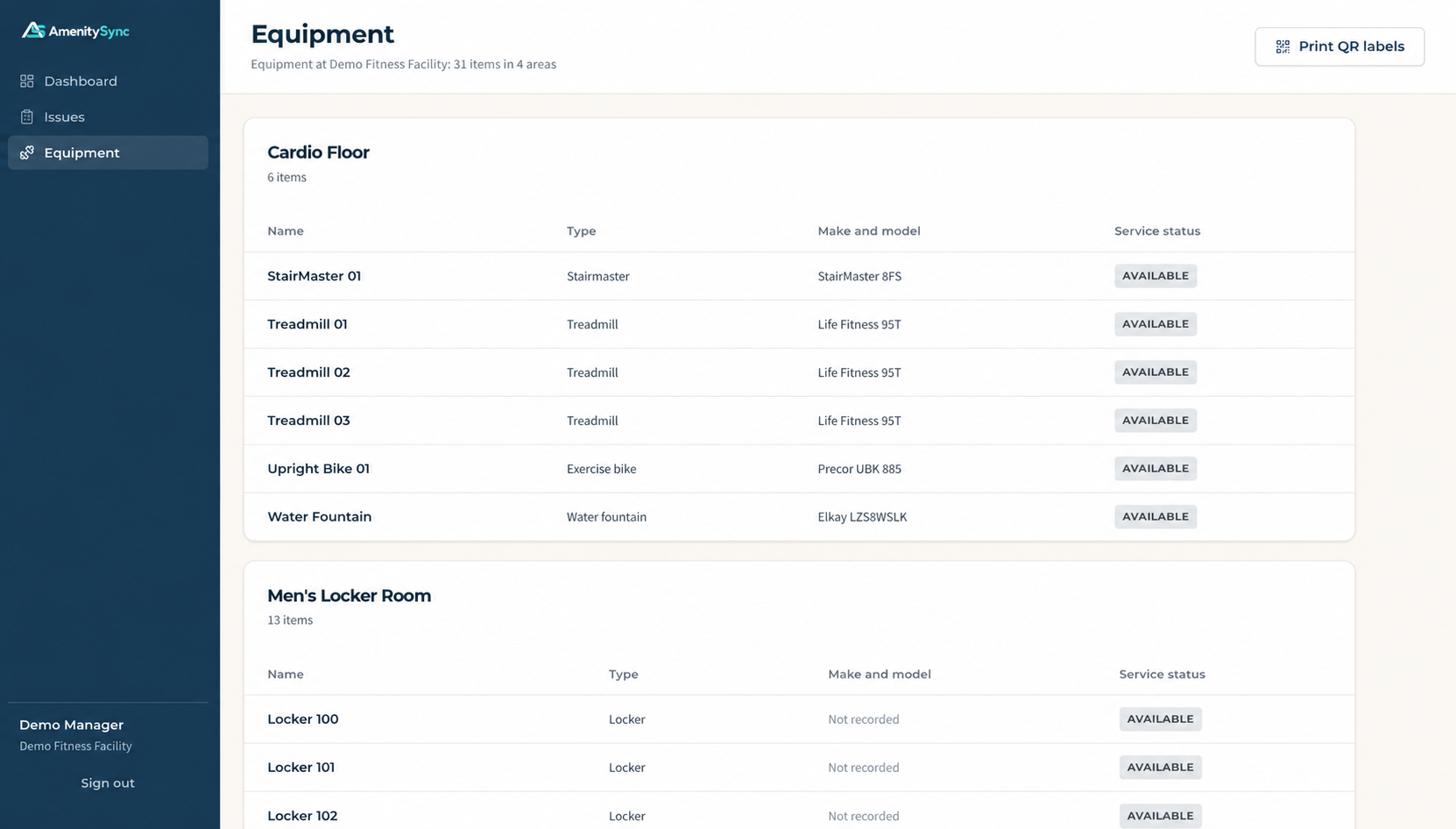
Update the report as work progresses and record who is handling it.
- Move a report to In Progress or Resolved.
- Record the staff member or service provider handling the issue.
- Review earlier issues for the same equipment.
- Set equipment availability separately from the report’s status.
Resolving a report does not automatically mark the equipment Available. Your team separately records Available, Limited use, or Out of service.
A CLOSER LOOK
Keep the details together.
Expand a section to see more of the demonstration workflow.
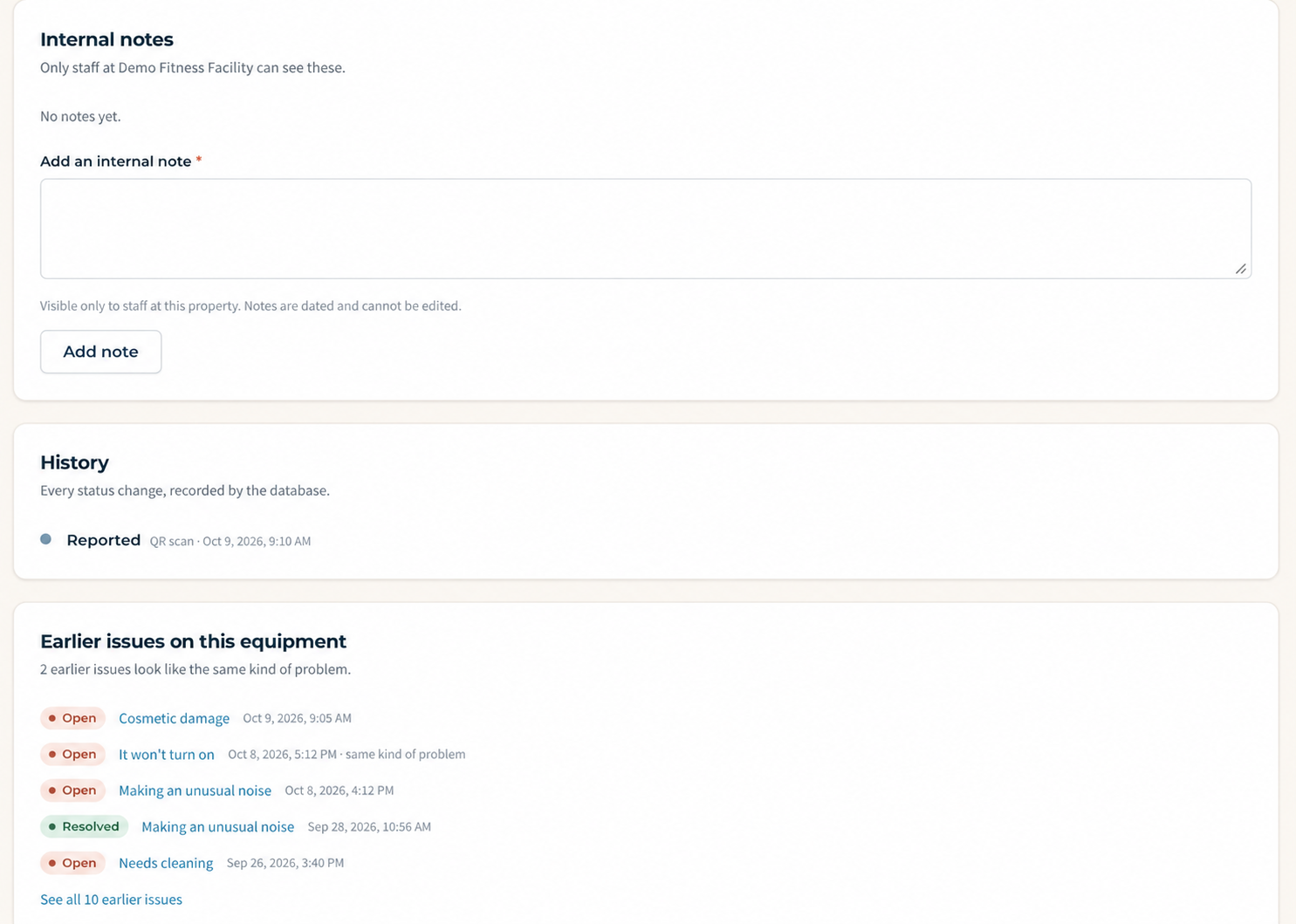
Internal notes and issue history
Add internal follow-up notes and review the report’s history alongside earlier equipment issues.
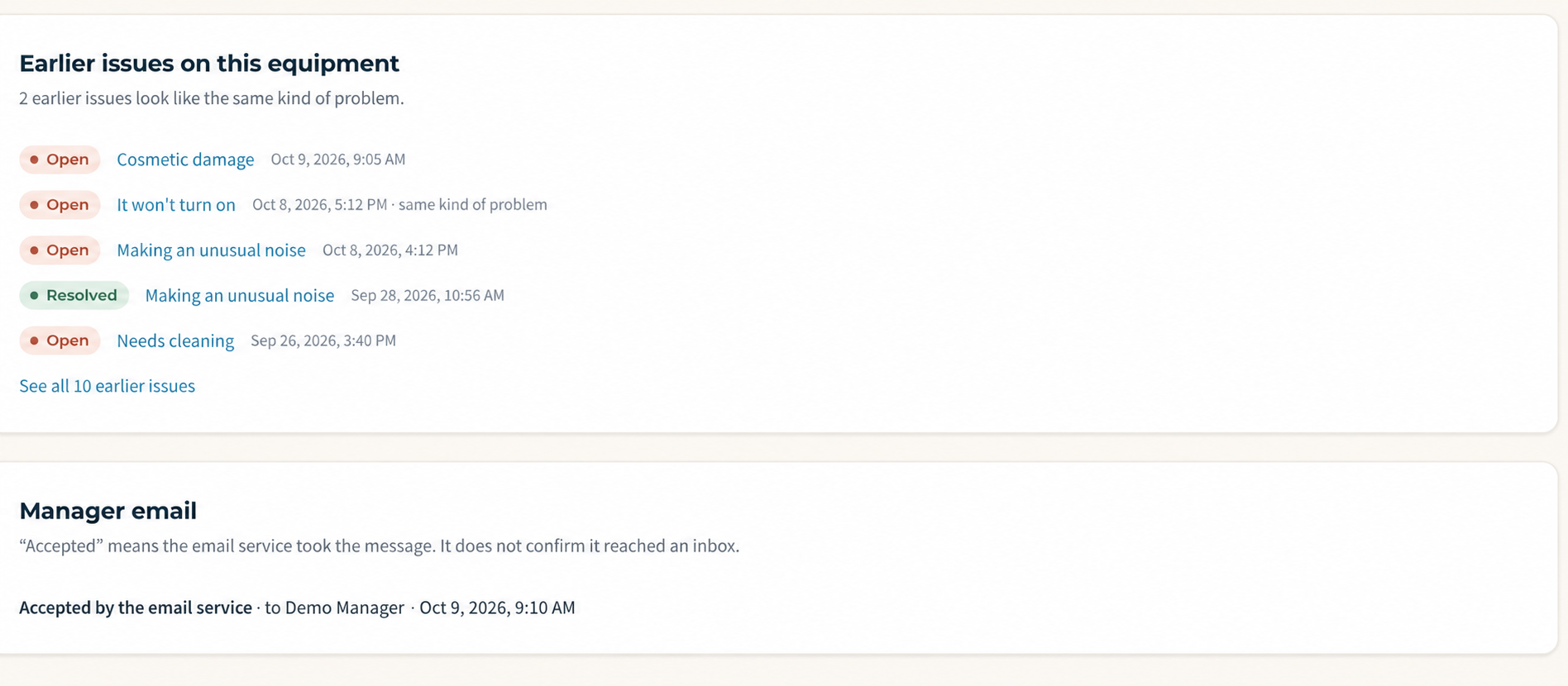
Manager email status
The report detail view can show an email-service status. “Accepted” means the email service took the message; it does not confirm that it reached an inbox.
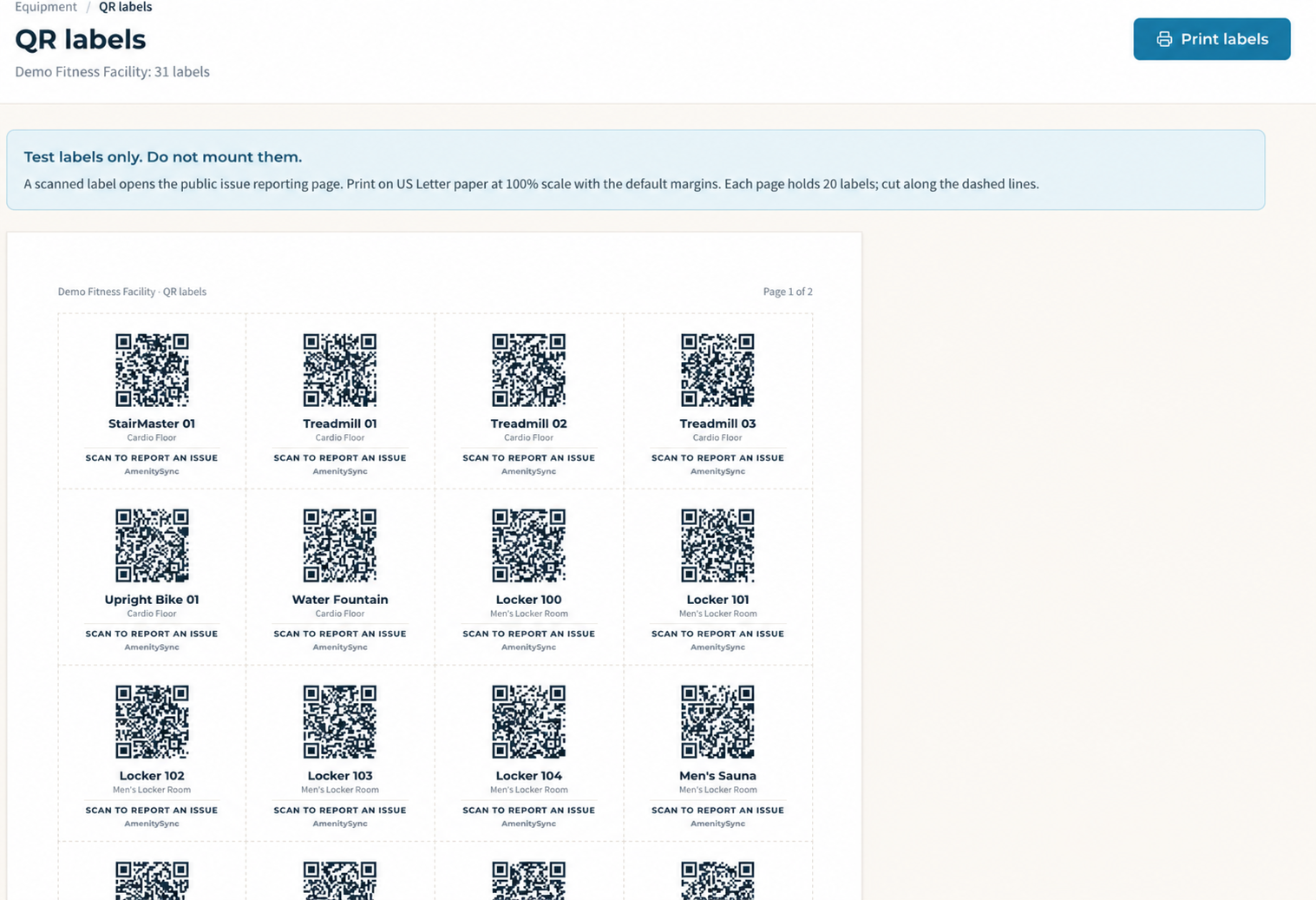
QR label preparation
Equipment-specific QR labels connect the reporting workflow to the item involved. During guided setup, we review the inventory, plan label placement, and test the reporting links with your team.
Keep the service provider you trust.
AmenitySync supports equipment reporting and tracking. Your staff and qualified service providers remain responsible for equipment safety decisions, inspections, and repairs.
See how it fits your facility.
Walk through a QR report and the staff view. We’ll discuss your current process and whether a founding pilot fits.